
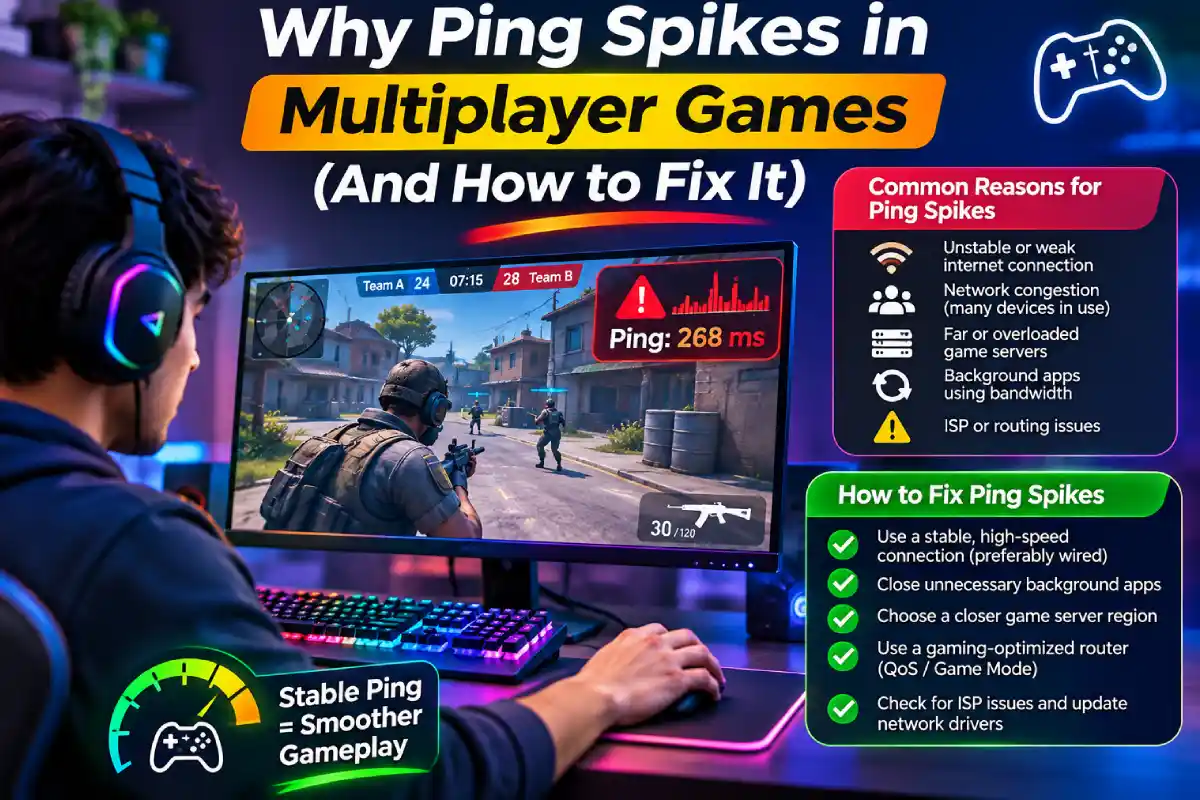

Why Ping Spikes in Multiplayer Games: One second you’re lining up the shot. The next, you’re rubber-banding into a wall. That’s what ping spikes do to a round.
Ping spikes in multiplayer games hit everyone, even players running multiplayer game cheats, because no tool fixes a bad route or a choked router.
The fix starts with finding where the delay lives. This guide walks you through the causes, the patterns, and a test sequence that points at the culprit.
What Ping Spikes Actually Are
Ping is round-trip time in milliseconds. Your packet goes out, the reply comes back. Jitter is how much that number wanders. Packet loss is data that never arrives.
A steady 80 ms feels predictable, so you adapt. A line bouncing between 25 ms and 180 ms gives you nothing to adapt to.
That’s why a spike hurts more than steady high latency. Clients predict movement and buffer updates. A delay that overshoots that window means rubber-banding, teleporting, delayed hit registration, or a brief freeze.
A 40 ms average with repeated 200 ms excursions can feel worse than a flat 80 ms. Average ping hides the damage.
The Usual Suspects Behind Ping Spikes in Multiplayer Games
Start with wifi. Interference, a weak signal, or a busy 2.4 GHz channel can wreck delivery while your speed test still looks fine.
Next, bufferbloat. When your upload speed is saturated by a cloud backup or a stream, the router queues packets, and small game packets sit in line behind bulk traffic.
Then your ISP. Network congestion and routing detours add delay that nothing inside your house can touch.
Last, the other end. Overloaded game servers and a mismatched server region both produce spikes that look like home problems but aren’t. Check the region before you rebuild your whole setup.
Read the Spike Pattern: Periodic vs. Random
Timing tells you a lot. Spikes that repeat every 30 to 60 seconds often point to local activity: wifi scanning or roaming, backup software, antivirus, cloud sync, or update checks. Treat the interval as a clue, not a rule.
Random spikes that cluster during peak hours lean toward network congestion on your ISP’s side. Spikes that fire whenever a download starts? That’s bufferbloat.
Rough targets, not official developer limits: jitter under 5 ms is good, and 20 ms or more is trouble. Packet loss should sit at 0%. Repeated loss of 1% or more is a red flag.
For latency, 20 to 50 ms suits highly competitive shooters, and 50 to 100 ms is generally playable. Slower-paced genres tolerate more, but sustained loss and jitter hurt everywhere.
Find the Cause with a Step-by-Step Test Sequence
Test in layers, starting at home. Run each ping test for a few minutes and watch for the moment the spikes appear.
- Ping your router, then 8.8.8.8. Open Command Prompt, run ipconfig, and find your Default Gateway. Then run ping -t against that address, stop with Ctrl+C, and repeat with ping -t 8.8.8.8.
- Run a route trace. Use tracert or PingPlotter and read it hop by hop. Loss or delay that starts at one hop and continues downstream marks the problem.
- Compare connections. Test over a wired connection (ethernet), then wifi, then a phone hotspot. If spikes vanish on ethernet, your wireless path is the problem, not the ISP.
- Ping the game’s server region. Use the game’s own diagnostic tool if it has one.
Here’s the logic. If the router stays stable while 8.8.8.8 worsens, the trouble sits beyond your local link. If both degrade under household traffic, local queueing is the likelier cause.
Fix Bufferbloat and Prove It Worked
Spikes that hit the moment something uploads? Bufferbloat is the prime suspect. Don’t guess. Measure it.
Run a loaded-latency test
Use Waveform or DSLReports. Both compare idle latency with latency under load. A clean idle ping that balloons under load points at your access link or router, not the game servers.
Turn on QoS or SQM
Enable QoS or SQM on your router. Pick fq_codel or CAKE as the queue algorithm if it offers a choice. SQM exists to cut latency caused by heavily loaded queues.
Then cap both directions at roughly 85 to 90% of your measured bandwidth. Upload speed matters most here. That cap moves the queue into your router, where it can be managed.
Compare before and after
Write down idle ping, loaded ping, jitter, and packet loss first. Rerun the same test after the change. Then run ping -t 8.8.8.8 while a big upload runs. Flat line means it worked.
Windows-Side Causes That Cause Sudden Lag
Sometimes the network is fine and your PC is the culprit.
Delivery Optimization can pull and share update data in the background, eating bandwidth mid-match. Open its settings, limit the bandwidth it uses, and switch off uploads to other PCs.
Next, check your adapter. In Device Manager, disable the option that lets Windows power down the device. Update the network drivers too, since stale ones cause odd stalls.
On wifi, aggressive roaming and background scans can fire spikes on a timer. Lower the roaming setting in the adapter’s advanced properties, or just go with a wired connection and skip the problem.
Finally, audit background apps. Cloud sync, backup tools, and overlay software all compete for the same line. A VPN adds an extra hop, so test with it off. Close everything, then add apps back one at a time.
When It’s Your ISP, Not Your Setup
You’ve gone wired, capped the queue, and cleaned up Windows. Spikes still show up. Time to look outside the house.
Evening peak hours are the classic tell. Routing can matter too, so compare behavior over IPv4 and IPv6 if your line supports both. Swapping DNS servers rarely fixes in-match spikes, but it can speed up lookups at login. Update the modem and router firmware, then reboot both.
Still stuck? Build a paper trail before you call support:
- Timestamps of each spike, with the time of day.
- Router and 8.8.8.8 ping results side by side.
- Your tracert or PingPlotter output showing the hop where delay starts.
- Proof the problem persists over ethernet.
Hand that over and you skip the “restart your modem” script.
Consoles, Hotspots, Satellite, and DDoS Suspicion
Consoles add their own wrinkle. A strict NAT type can mean poor peer connections, so check it in the network menu. Port forwarding on your router, or UPnP, usually opens it up.
Mobile and satellite links behave differently. 5G and Starlink can spike during tower or satellite handoffs, so a steady ping test may still show periodic jumps no setting will remove.
DDoS suspicion? Check scope first. If every device on your network lags at once while your router stays reachable, call your ISP. If only one machine spikes, look at that machine.
Quick Fix Checklist and Frequently Asked Questions
Go wired, cap your upload with SQM, kill background apps, then log evidence for your ISP.
Is ping spiking always my ISP’s fault?
No. Bufferbloat, wifi, and Windows tasks cause most spikes.
Will a gaming router fix it?
Only if it supports QoS or SQM.