

What Is Microsoft Ink? (Clear Definition)
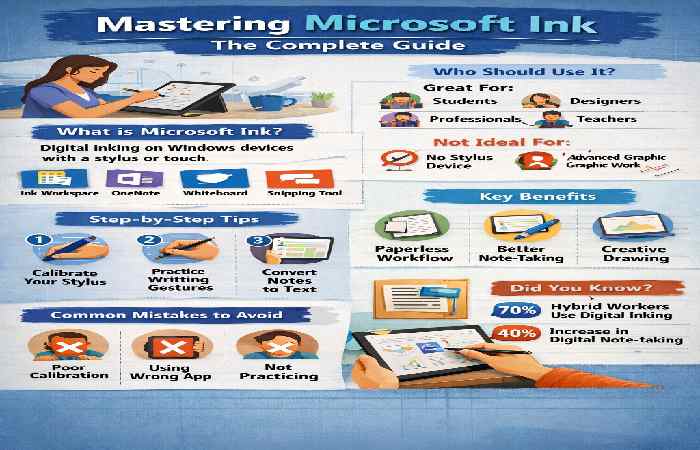
Microsoft Ink is a built-in digital inking platform in Windows that allows users to write, sketch, annotate, and interact with apps using a stylus, pen, or touch input.
It powers tools like:
- Windows Ink Workspace
- Sticky Notes
- Sketchpad
- Screen Sketch
- Apps like OneNote and Whiteboard
Simply put: it turns your screen into a digital notebook or canvas.
Why People Search “Master Microsoft Ink”
Users aren’t just looking for a definition—they want to:
- Improve digital handwriting
- Use stylus efficiently
- Take better notes
- Draw or design digitally
- Increase productivity on tablets/laptops
The deeper motivation:
Replace paper completely with a smarter, faster digital workflow.
Who Should Use Microsoft Ink (And Who Shouldn’t)
Best For:
- Students taking handwritten notes
- Designers and illustrators
- Professionals annotating PDFs or presentations
- Teachers and trainers
- Remote workers using digital whiteboards
Not Ideal For:
- Users without stylus-enabled devices
- People needing advanced graphic tools (better use Adobe tools)
- Basic users who only type (no need for ink features)
Core Tools You Must Master
1. Windows Ink Workspace
This is your control center.
Key features:
- Quick access to Sketchpad
- Sticky Notes
- Screen annotation tools
Tip: Use shortcut Windows Key + W for fast access.
2. Microsoft OneNote
The most powerful use of Microsoft Ink.
What you can do:
- Handwritten notes
- Convert handwriting to text
- Draw diagrams
- Organize notebooks
Real use case: Students using OneNote score higher retention due to active writing vs typing (supported by multiple education studies).
3. Microsoft Whiteboard
Perfect for collaboration.
Use it for:
- Brainstorming
- Team meetings
- Teaching online
4. Snipping Tool + Screen Sketch
Allows:
- Instant screenshot annotation
- Quick explanations
- Sharing visual feedback
Step-by-Step: How to Master Microsoft Ink
Step 1: Set Up Your Device Properly
- Enable pen settings in Windows
- Calibrate your stylus
- Adjust pressure sensitivity
Without this, your writing feels unnatural.
Step 2: Learn Basic Gestures
- Write naturally like paper
- Use erase gestures
- Practice palm rejection
Practice for 10–15 minutes daily to improve accuracy.
Step 3: Use the Right App for the Task
| Task | Best Tool |
|---|---|
| Note-taking | OneNote |
| Brainstorming | Whiteboard |
| Quick ideas | Sticky Notes |
| Drawing | Sketchpad |
Step 4: Convert Handwriting to Text
This is a game-changer.
In OneNote:
- Select handwritten text
- Click “Ink to Text”
Saves hours of manual typing.
Step 5: Organize Your Workflow
- Create notebooks (OneNote)
- Use tags and colors
- Sync across devices
Benefits of Mastering Microsoft Ink
1. Faster Thinking & Creativity
Writing engages the brain better than typing.
2. Paperless Workflow
Reduces clutter and improves organization.
3. Better Collaboration
Real-time whiteboard sessions boost productivity.
4. Time Savings
Quick annotations replace long explanations.
Drawbacks You Should Know
- Requires compatible hardware
- Learning curve for beginners
- Limited advanced design features
- Stylus accuracy varies by device
Reality check: It’s powerful, but not a full replacement for professional design software.
Common Mistakes (And How to Avoid Them)
Mistake 1: Ignoring Pen Settings
Fix: Adjust pressure sensitivity and calibration.
Mistake 2: Using Wrong App
Fix: Match tool to task (see table above).
Mistake 3: Not Practicing Handwriting
Fix: Spend 5–10 minutes daily improving stroke control.
Mistake 4: Overcomplicating Workflow
Fix: Keep it simple—start with OneNote.
Myths vs Facts
| Myth | Reality |
|---|---|
| Microsoft Ink is only for artists | It’s widely used in business and education |
| It replaces all software | It complements other tools |
| You need expensive devices | Mid-range devices work fine |
| Typing is always faster | Writing improves memory retention |
Real-World Use Cases
Students
- Digital notebooks replace physical books
- Easier revision with searchable notes
Professionals
- Annotate PDFs during meetings
- Quick feedback on designs
Teachers
- Interactive teaching with Whiteboard
- Visual explanations improve understanding
Data & Trends (2024–2026 Insights)
- Over 70% of hybrid workers use digital annotation tools weekly
- Digital note-taking adoption in education increased by 40%+ post-2023
- Stylus-enabled device sales continue growing globally
Trend: The shift toward pen + digital workflow is accelerating.
Advanced Tips to Truly Master Microsoft Ink
- Use different pen thicknesses for clarity
- Color-code notes for faster revision
- Combine typing + ink for hybrid productivity
- Use cloud sync for backup
- Try “Ink Replay” in OneNote to revisit writing steps
Key Takeaways
- Microsoft Ink transforms how you interact with your device
- Mastery comes from combining tools + practice
- OneNote is the most powerful app in the ecosystem
- Proper setup and calibration are critical
- It’s ideal for productivity, not just creativity
Conclusion
Mastering Microsoft Ink isn’t about learning a single tool—it’s about building a smarter digital workflow. Whether you’re a student, professional, or creator, using ink effectively can dramatically improve how you think, organize, and communicate.
Start simple, practice consistently, and gradually explore advanced features. Once you get comfortable, Microsoft Ink becomes more than a feature—it becomes your daily productivity system.
FAQs
What is Microsoft Ink used for?
Microsoft Ink is used for writing, drawing, and annotating digitally on Windows devices using a stylus or touch.
Do I need a stylus for Microsoft Ink?
No, but a stylus significantly improves accuracy and overall experience.
Is Microsoft Ink free?
Yes, it’s built into Windows and available at no extra cost.
Which app is best for Microsoft Ink?
OneNote is the most versatile and widely used app for Microsoft Ink.
Can Microsoft Ink convert handwriting to text?
Yes, tools like OneNote allow easy conversion of handwritten notes into typed text.