

Online vs. Desktop EDB to PST Converter: A Detailed Review of Stellar’s Conversion Tools – Stellar Converter for EDB gives you two options to convert EDB file to PST. The browser service suits a small Exchange mailbox extraction job. The desktop application makes more sense when you need local processing, larger databases, or control over which mailboxes and messages are exported.
This review explains both workflows, the current plan options, and the checks that matter after conversion. My recommendation is to start online for a small, permitted upload and choose desktop for recurring administrative work. That recommendation concerns workflow and features; conversion performance still requires a completed test.
What the online EDB to PST converter service includes
EDB to PST Converter Stellar online service lets you extract emails, calendars, contacts, notes, and tasks from offline EDB files directly through a web browser. You do not need to connect to an Exchange Server or install desktop software. The tool maintains the original folder structure and provides the converted mailbox data in PST format, packaged in a ZIP file for download.
First you need to upload an EDB file, the converted files remain available for download for 24 hours with the free version and 48 hours with the premium version. Stellar also states that uploaded files are deleted within the respective time periods. These periods refer to file availability and data retention, not the time required to complete the conversion.
Online EDB to PST conversion step by step
1. Open the service and sign in
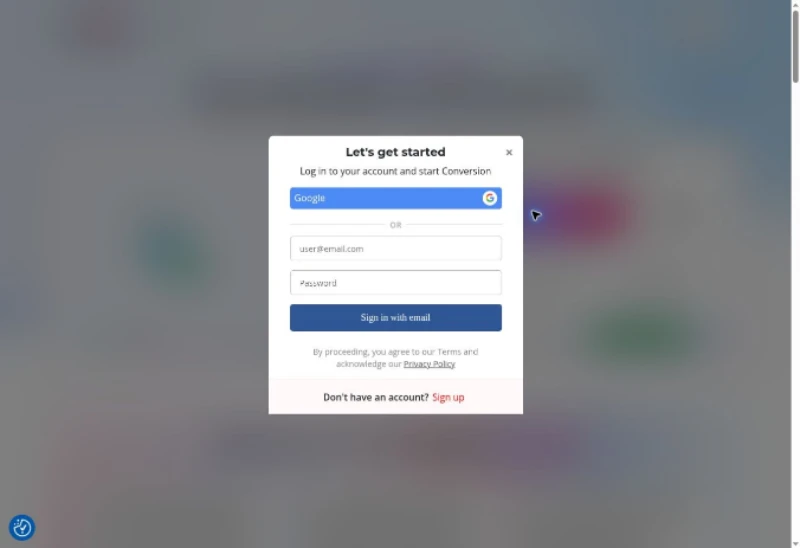
Open Online EDB Converter service and select Convert EDB File. In the live session, this opened a dialog offering Google or email-and-password sign-in, plus a Sign up option. No conversion begins merely by opening the page.
2. Upload the offline EDB file
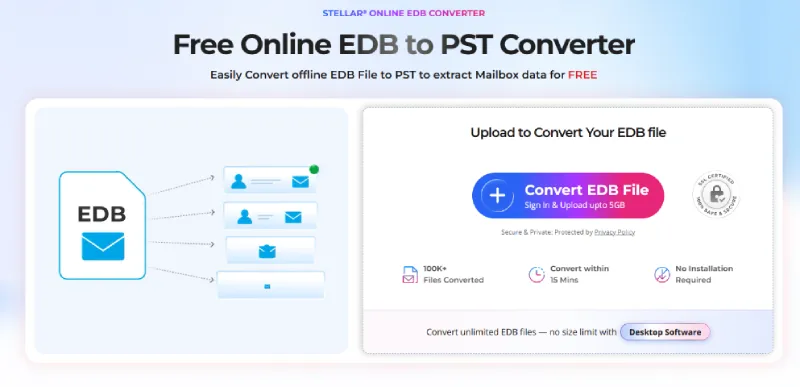
After authentication, select the EDB file for upload. Check its size against the selected plan. Keep the original file and record the file name and size before starting.
3. Let the service analyze and convert
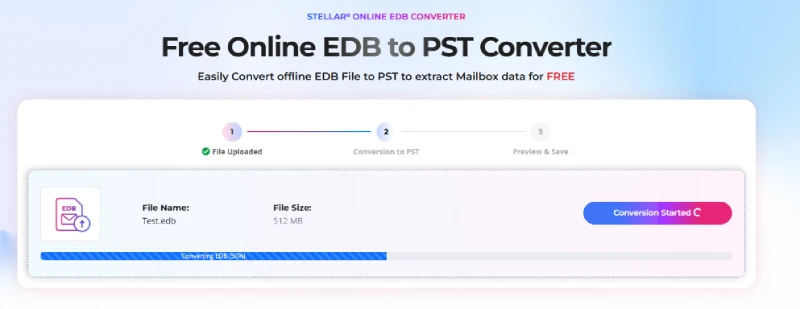
The service processes the uploaded EDB file automatically. Measure upload time separately from processing time if you are comparing it with desktop. A large transfer on a slow connection can dominate the overall wait.
4. Inspect the mailbox preview
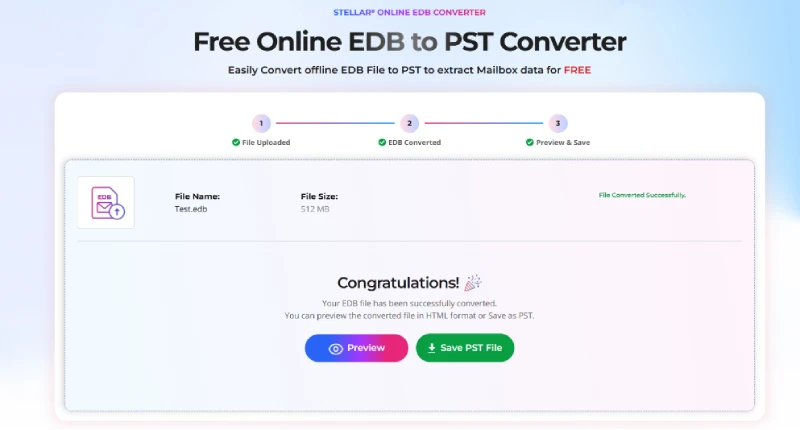
Review the mailbox list, folder hierarchy, and item counts before downloading. Check that the mailbox you need is present. Do not treat a folder list alone as a verification of every message or attachment.
5. Download and validate the PST files
Download the ZIP during the availability window and extract its PST files. For a meaningful review, open the results in a compatible Outlook installation and compare representative messages, attachments, contacts, and calendar entries with known source data. Record any differences.
Online experience and value
The entry flow is easy to locate: the page puts the conversion button beside the upload panel and explains that sign-in is required. The pricing selector is also useful because the mailbox count and price change together. I checked each of its four paid selections.
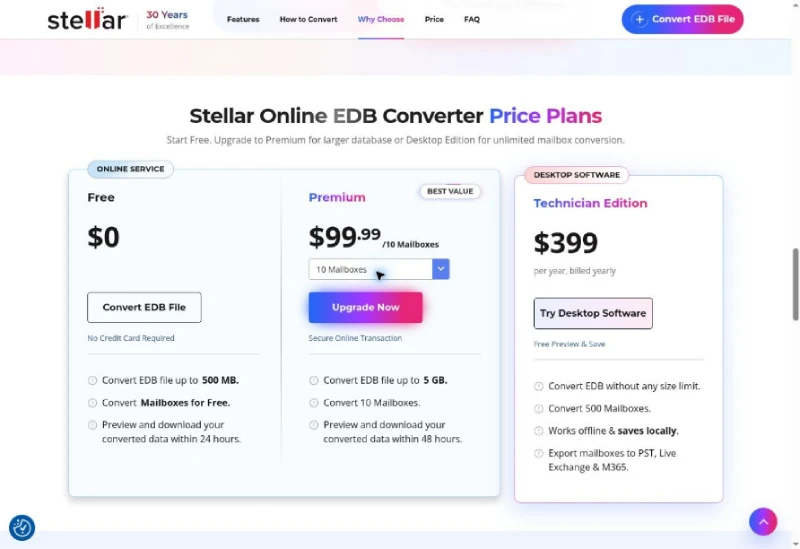
The free allowance is a sensible place to begin a small extraction. The online tool offers a convenient way to convert EDB files without installing software, making it a practical choice for smaller and suitable files. The upload and download process is designed to be straightforward, with a defined availability window for accessing the converted data. It works particularly well when the file size fits the available allowance and online processing meets your requirements.
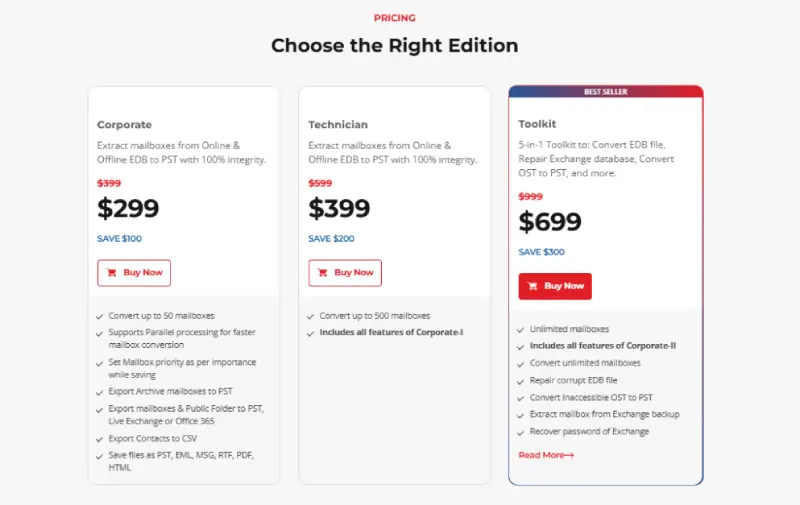
For a larger one-off job, compare the full package cost with desktop. At the displayed prices, Online Premium for 50 mailboxes costs $399.99, while the desktop Technician offer is $399 for a one-year license covering 500 mailboxes. Those are different workflows and license terms, but the comparison is worth making before checkout.
Desktop Tool that change the decision- Stellar Converter for EDB
Stellar Converter for EDB supports offline EDB file conversion without size cap. Its broader feature set includes selective exports, archive mailboxes, public folders, and destinations such as PST, live Exchange, and Microsoft 365. Other file outputs include MSG, EML, HTML, RTF, and PDF.
The desktop application’s Hosted Exchange mode is separate from the browser service. Hosted Exchange connects to a running Exchange environment with the required permissions. For the supplied offline EDB samples, the relevant desktop workflow is Offline EDB.
My main reason to consider desktop is control: inspect individual items, choose only the required content, and keep an offline-to-PST job local. Unlimited input size does not remove the need for sufficient RAM, temporary storage, and space for the exported files.
How to Convert an Offline EDB File to PST Using Stellar Converter for EDB?
Before starting, make sure your system meets the software requirements. According to the version 12.2.0.0 manual, the application requires a 64-bit processor and Windows operating system, at least 8 GB RAM (16 GB recommended), 250 MB of free disk space for installation, and .NET Framework 4.6.1 or later. It supports Outlook versions from 2007 to 2024, with 64-bit Outlook recommended for better performance.
Download the installer from the official Stellar product page. Run the setup file, select your preferred language, accept the license agreement, and choose the installation location. Follow the on-screen instructions to complete the installation.
Select and Scan the Offline EDB File
Open Stellar Converter for EDB and select Offline EDB from the main screen.
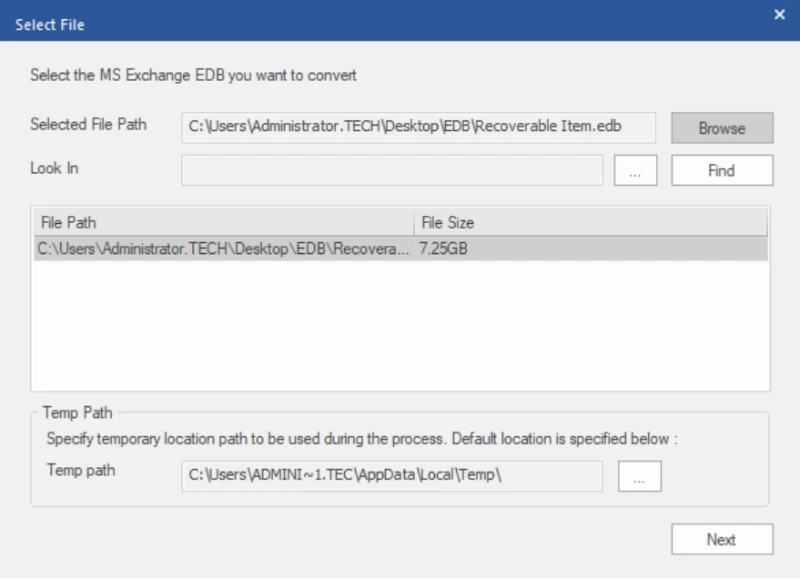
Click Select EDB File on the Home ribbon. If you already know where the EDB is stored, click Browse and select the EDB file. You can also use the Find option to search for the file in a specific folder or drive.
Once the file is selected, confirm its location and the temporary folder path. Click Next to start scanning the EDB file.
The software allows you to add multiple EDB files.
Preview Mailboxes and Their Contents
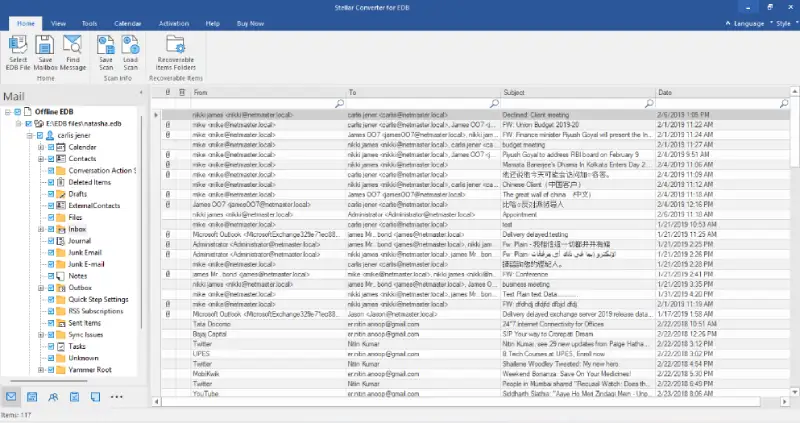
After the scan is complete, the software displays the converted mailbox data in a three-pane interface. The left pane shows the mailbox folders, the middle pane lists individual items, and the right pane displays the selected item’s contents.
Select a mailbox or folder to view its emails, contacts, calendar entries, and other available data. You can also open individual emails to check their contents and attachments before exporting them.
Activate the Software to Save Mailboxes
You can scan the EDB file and preview its contents before activating the software. However, a valid activation key is required to save the mailbox data.
To activate the product, open the Activation ribbon and select Activation. Enter your activation key and complete the process. Make sure your system has an active internet connection during activation.
Save Mailboxes in PST Format
Once the software is activated, select Save Mailbox from the Home ribbon.
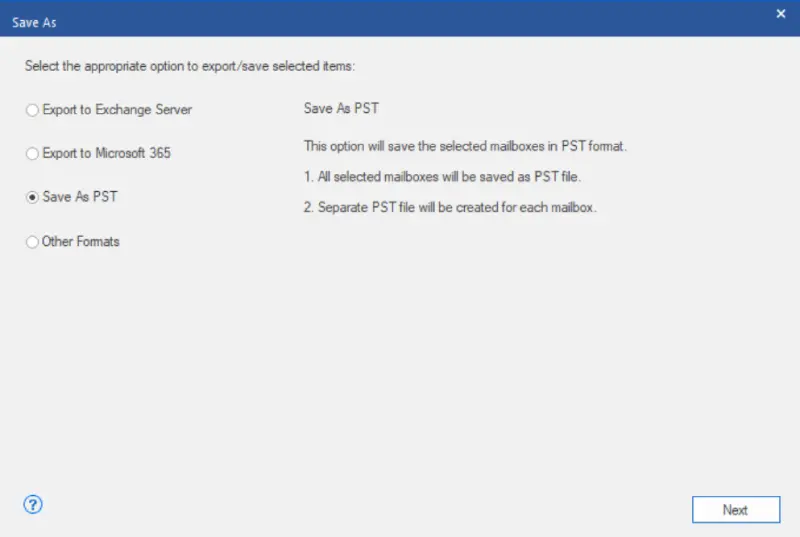
Choose PST as the saving format and click Next. Browse to the folder where you want to save the exported PST files.
The software also provides an Auto Split PST File option, which can divide large PST files into smaller parts of up to 45 GB. Enable this option if you need to split the output files.
Apply Filters and Set Mailbox Priority
Before starting the export, you can use the Apply Filter option to customize the data you want to save.
The available filters let you exclude Junk E-Mail and Deleted Items, specify a date range, or exclude emails from particular sender addresses.
If you want to export all available mailbox data, leave these filters unchanged.
You can also set the priority of individual mailboxes in the Save Mailboxes window. This is useful when you want to export certain mailboxes before others.
Stellar Converter for EDB supports saving up to eight mailboxes simultaneously, depending on the available system resources.
Complete the Export and Verify the PST Files
Click Next to start saving the selected mailboxes. Wait for the process to finish and check the status displayed by the software.
Once the export is complete, use Open Containing Folder to access the saved PST files. You can also open the Log Report from the View ribbon to review the export details.
To verify the exported data, open the PST files in Outlook and check a few emails, attachments, contacts, and calendar entries. You can also compare the source and exported folder contents to confirm that the required data has been saved.
What the desktop workflow adds
The preview, filters, and priority list make the process more deliberate than a simple upload-and-download job. That is useful for an administrator who needs specific content or wants urgent mailboxes first. It also means more decisions during setup. The best choice depends on whether that extra control helps the actual job.
Desktop pricing and edition choice
Pros and limitations
| Version | Reasons to consider it | Limits to weigh |
| Online | No desktop installation; free small-file entry point; browser preview | Sign-in and upload required; plan size and mailbox limits; time-limited download |
| Desktop | Local PST workflow; selective export; priorities and filters; more destinations | Windows and Outlook requirements; paid activation for saving; edition mailbox allowances |
Verdict
For small, occasional EDB file exports, Online EDB Converter is a convenient choice. Its straightforward upload-and-convert process makes it easy to use without installing any software. The free version also provides a good starting point for users who want to try the service.
For larger EDB files, frequent exports, or situations requiring more control over mailbox selection and export settings, Stellar Converter for EDB desktop version is a better option.
Both versions offer different advantages depending on the requirements. The online converter is suitable for quick and occasional exports, while the desktop application offers more flexibility and features for handling larger databases and regular export tasks.