

When your Outlook is configured with POP3 account, it creates a PST – Personal Storage Table – file to store all your emails, contacts, tasks, calendar entries, and other mailbox items locally on your device. However, like other data files, PST files are prone to corruption due to several internal and external factors.
If your PST file gets corrupted, you can use Outlook’s built-in utility—ScanPST (Inbox Repair Tool) – to repair it. This tool is designed to fix inconsistencies and errors in the PST files. However, sometimes, this tool fails to repair the PST file. In such a situation, you need to find ways to repair your PST file without ScanPST.
In this article, we will discuss how to repair corrupted PST file with or without ScanPST.
Reasons Why PST Files Can Get Corrupted
Below are the reasons why PST files can get corrupted:
- Abrupt System or Application Shutdown
- Oversized PST File
- Network Storage Issues
- Malware or Virus Attack
- Faulty Add-ins/Plugins
- Bad Sectors on the Storage Drive
How to Repair Corrupted PST File with ScanPST?
Microsoft provides a free utility called ScanPST or Inbox Repair Tool to fix minor corruption in PST files. You can easily find and access it on your system by following the given paths as per your Outlook version:
| Outlook Version | Windows 32-bit ScanPST.exe Location | Windows 64-bit ScanPST.exe Location |
| Outlook 2016 / 2019 / Office 365 | C:\Program Files\Microsoft Office\root\Office16 | C:\Program Files (x86)\Microsoft Office\root\Office16 |
| Outlook 2013 | C:\Program Files\Microsoft Office 15\root\Office15 | C:\Program Files (x86)\Microsoft Office 15\root\Office15 |
| Outlook 2010 | C:\Program Files\Microsoft Office\Office14 | C:\Program Files (x86)\Microsoft Office\Office14 |
| Outlook 2007 | C:\Program Files\Microsoft Office\Office12 | C:\Program Files (x86)\Microsoft Office\Office12 |
Follow the steps below to use ScanPST:
- After locating the ScanPST tool, launch it.
- Click on Browse to select your PST file.
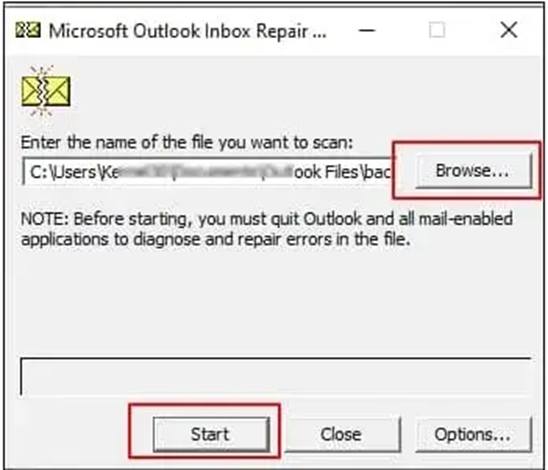
- Click on
- Now, wait till the scan process is finished.
- If the errors are found, then click on
Note: Make sure to check the checkbox “Make backup of scanned file before repairing” to create a backup of your PST file.
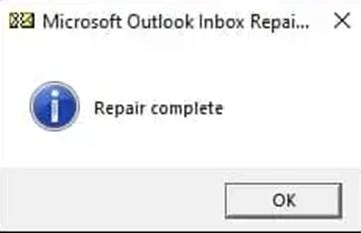
- When the repair process is complete, click
Though ScanPST can fix minor corruption and other issues in the PST file, it has certain limitations. These are:
- Repairs only minor corruption in PST file
- Struggles with large PST files
- May cause data loss during repair
- No preview of recoverable items
- Requires to run multiple times to fully resolve the issues
- Cannot recover deleted emails
- Cannot repair password-protected PSTs
- Shows “Errors Fixed” even when issues remain
How to Repair your Corrupted PST File without ScanPST?
As mentioned above, ScanPST sometimes fails to repair PST files due to its limitations. So, what’s the best ScanPST.exe alternative? Use an advanced PST repair tool, like Stellar Repair for Outlook. This is a professional Outlook PST repair tool that can repair large, severely corrupted PST files. Also, this tool offers an auto-split feature that automatically splits large PST files into multiple smaller files to prevent corruption in the future. You can also save the repaired file in several other formats like HTML, MSG, RTF, PDF, etc.
Let’s see the steps to use Stellar Repair for Outlook:
- First of all, you have to download and install the application from the official website.
- Launch the application.
- You will see two options: List Profile and Choose Manually.
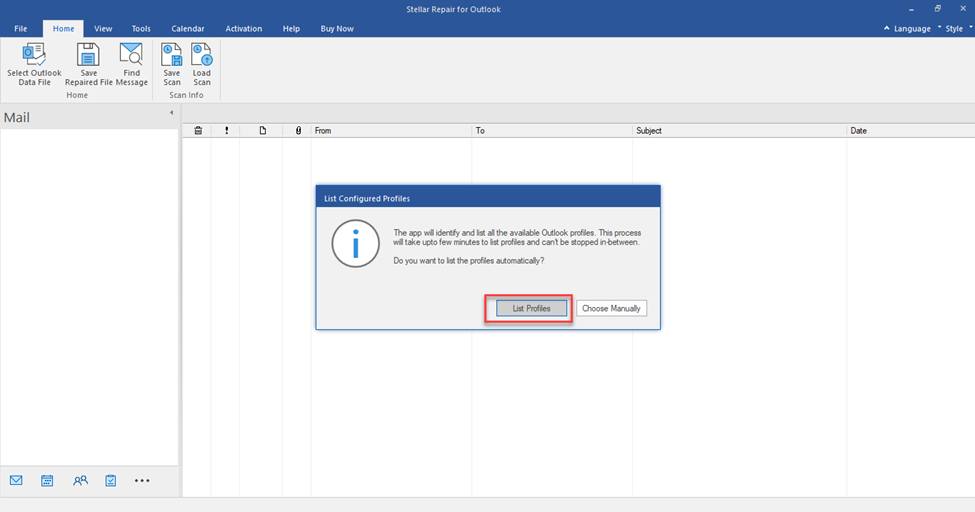
- Select List Profiles. It will automatically fetch the PST file.
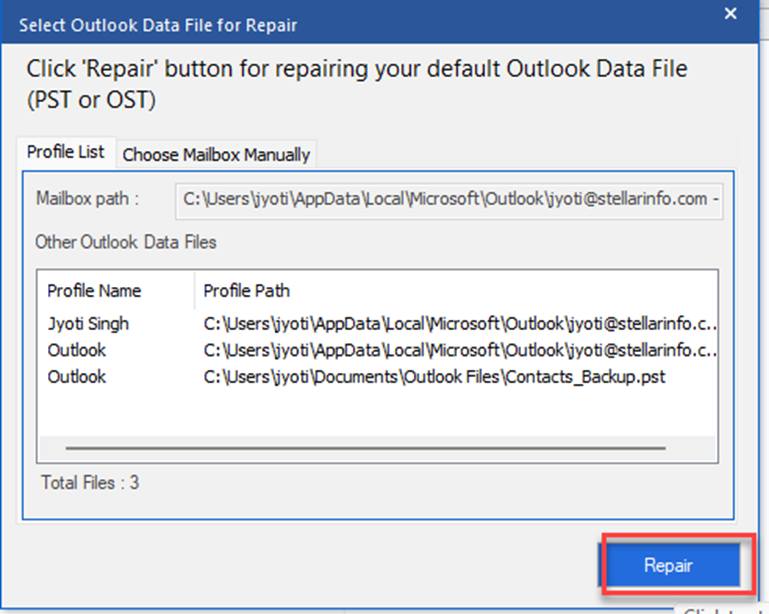
- Click on
- After scanning process is complete, the tool will display all your mailbox data in a three-pane preview window.
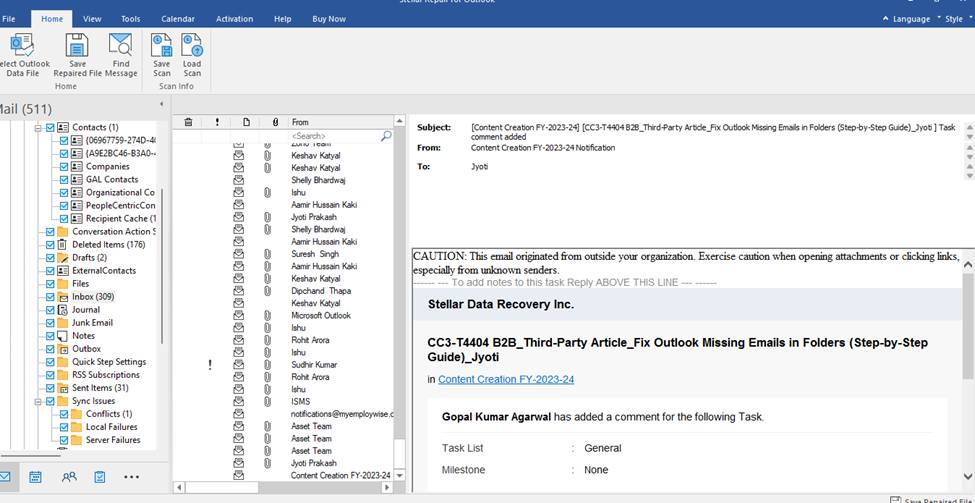
- Click on Save Repaired File and choose the file format as PST.
- Click on
- Browse the desired location where you want to save the repaired PST file.
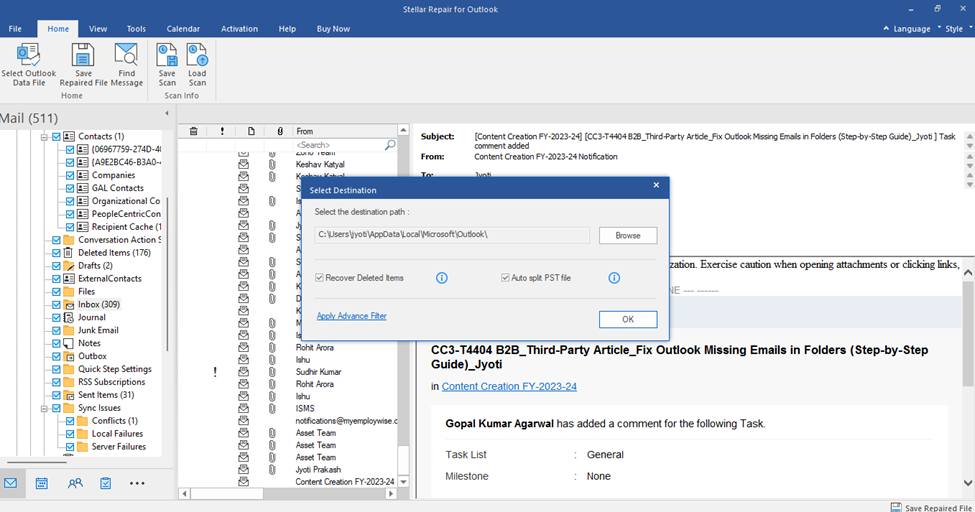
- Click
Once the repair is done, you can import it into Outlook by using the Import/Export wizard and access your mailbox items.
Conclusion
If your PST file is corrupted, you can repair it by using Microsoft’s built-in tool ScanPST. But if your PST file is oversized, severely corrupted, or encrypted, then it may fail to repair it. For severe corruption or large files, using a professional PST repair tool like Stellar Repair for Outlook is the best solution. This is a reliable and efficient tool that can successfully repair large or severely corrupted PST files.
Also Read: Why Fast-Scaling Companies Choose Cloud-First Application Development